WorldEditWrapper is a great mod for Minecraft that allows you to use the famous WorldEdit plugin within single player Minecraft. WorldEditWrapper allows you to use all the functionality that WorldEdit for servers has.
How to install:
1. Download and install LiteLoader for Minecraft.
2. Download WorldEditWrapper.
3. Put the WorldEditWrapper file in the mods folder for Minecraft.
4. Launch Minecraft. You can now use WorldEdit on single player. For the best experience, also install WorldEditCUI.
Downloads:
More details can be found on the WorldEditWapper forum page.
Frequently accessed pages
Showing posts with label Minecraft. Show all posts
Sunday, November 16, 2014
Tuesday, October 7, 2014
Bukkit and Spigot Minecraft 1.8 and 1.7.10 Mirror Download Links
Bukkit and forked projects from Bukkit are now dead. With the acquisition of Mojang by Microsoft (Bukkit was owned by Mojang) and other recent events, all of the senior staff for Bukkit have left the project and numerous other Bukkit developers have left too. Additionally, Bukkit has been completely taken down due to a copyright notice. The same goes for other projects, such as Spigot, which are forked from Bukkit. Fortunately, Bukkit Dev will remain operational.
Fortunately, I was able to get the Bukkit and Spigot JAR files for 1.7.10 and 1.8, and upload them to MEGA.
Here are the download links:
Download SpigotMC for Minecraft 1.7.10
Download SpigotMC for Minecraft 1.8
Download Bukkit for Minecraft 1.7.10
Download Bukkit for Minecraft 1.8
Also, there is another project called Sponge which is being created by numerous prominent members of the Minecraft modding community. Sponge will include numerous improvements over Bukkit, Forge integration, and numerous other features. You can read more about it here.
Monday, August 4, 2014
Should I run 64-bit or 32-bit Java for Minecraft?
A common question amongst Minecrafters is if they should run 64 bit Java or 32 bit Java. The short answer is that you should run 64 bit Java whenever possible. This is because of a number of reasons. Running a 32 bit version of Java limits you to only be able to use a maximum of 4 GB of memory and runs slower which is especially noticeable when rendering the world in Minecraft. 64 bit Java on the other hand allows you to access 17.2 billion GB of memory so Java won't hinder your ability to use super RAM intensive programs such as an instance of heavily modded Minecraft. Although 64 bit computers running 64 bit operating systems can run 32 bit applications, 32 bit computers can not run 64 bit applications.
Thursday, June 12, 2014
LiteLoader for Minecraft 1.7.10, 1.7.2, 1.6.4, 1.6.2, 1.5.2
What is LiteLoader?
LiteLoader is a lightweight mod bootstrap for Minecraft mods that don't change or modify the game mechanics of Minecraft. It is can be used alongside Minecraft Forge and Forge Mod Loader. Mods for LiteLoader practically never conflict with Forge mods.
Click to download LiteLoader
Friday, May 30, 2014
Faithful 32x32 Resource Pack for Minecraft 1.6 and 1.7
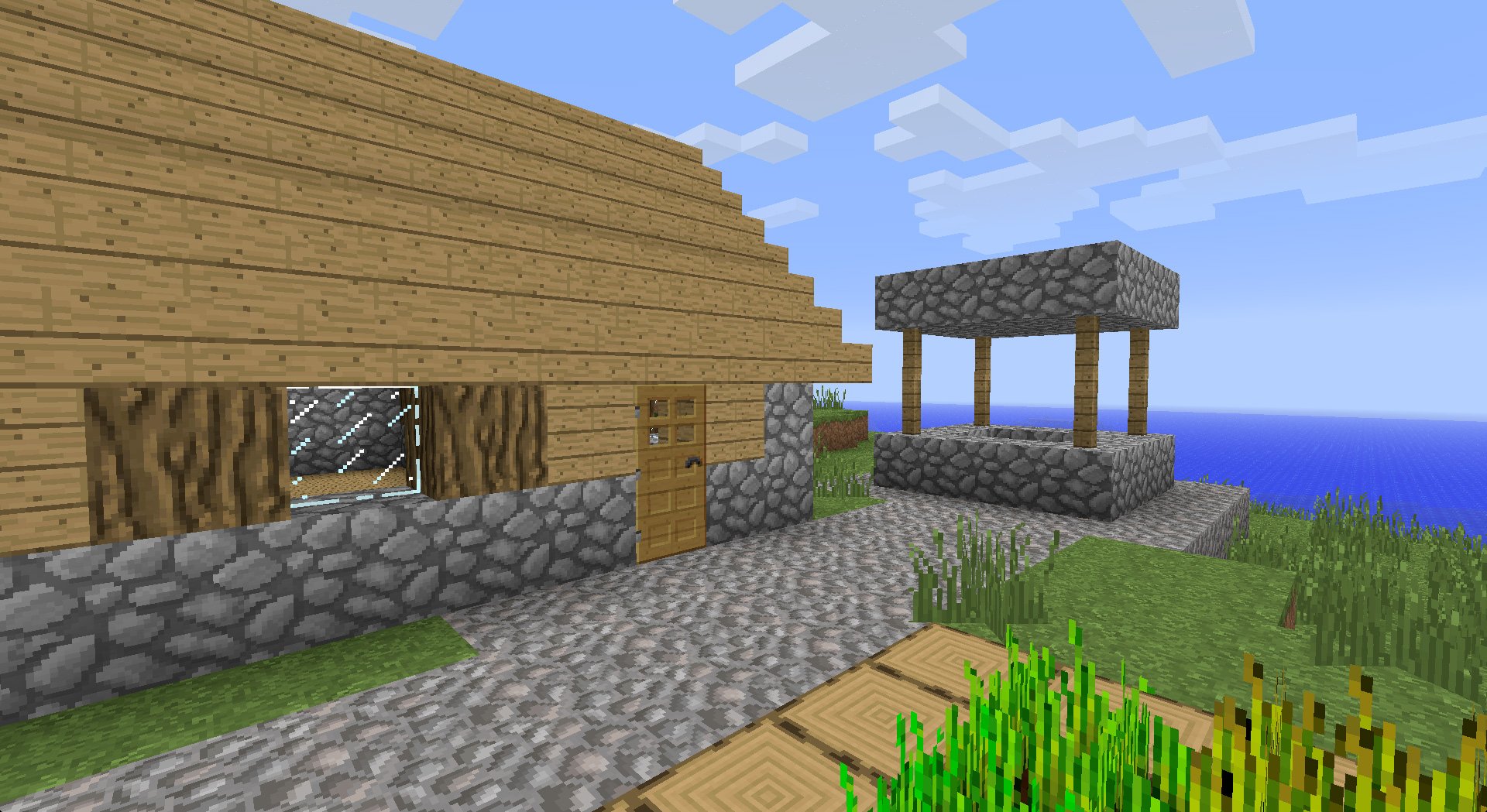
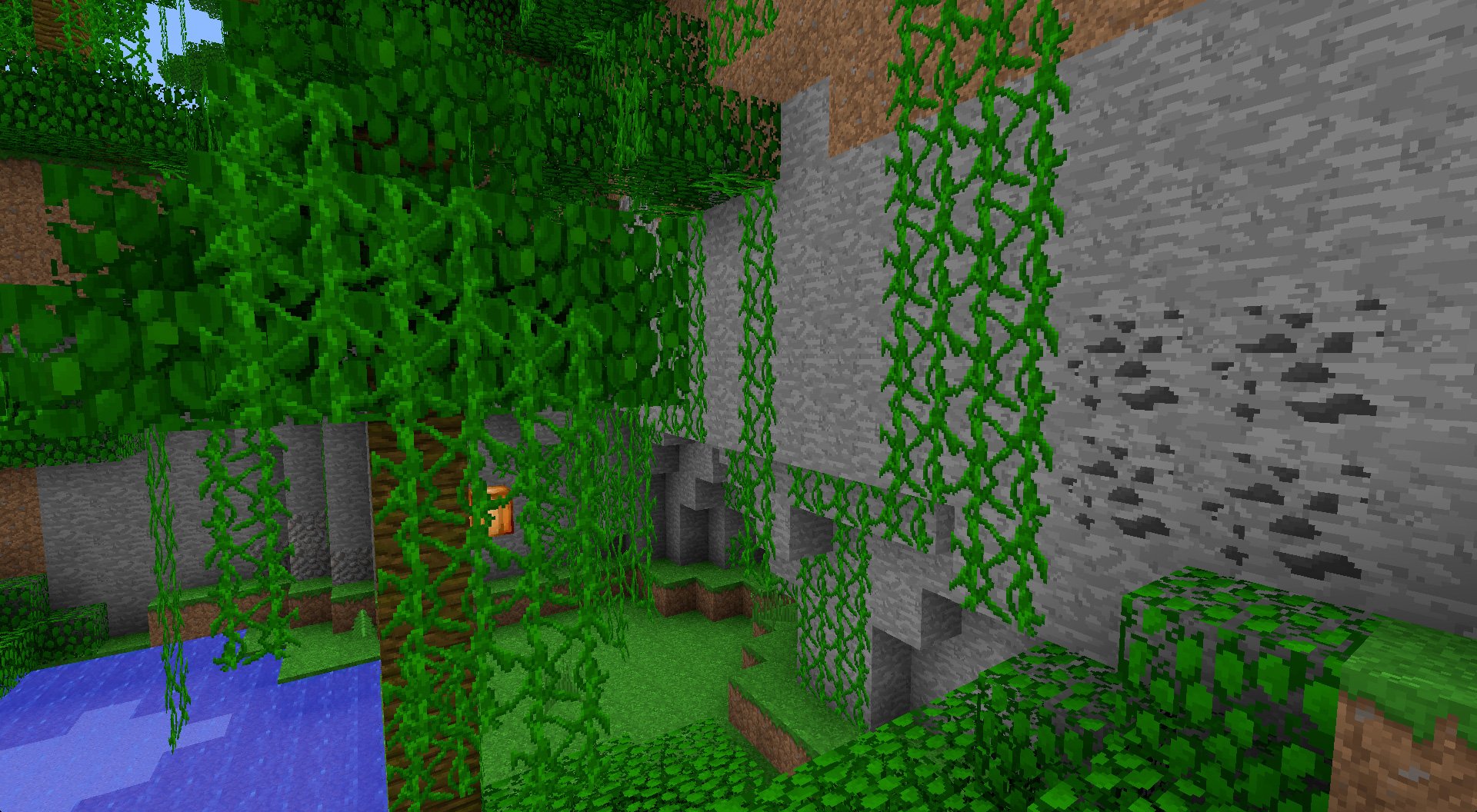
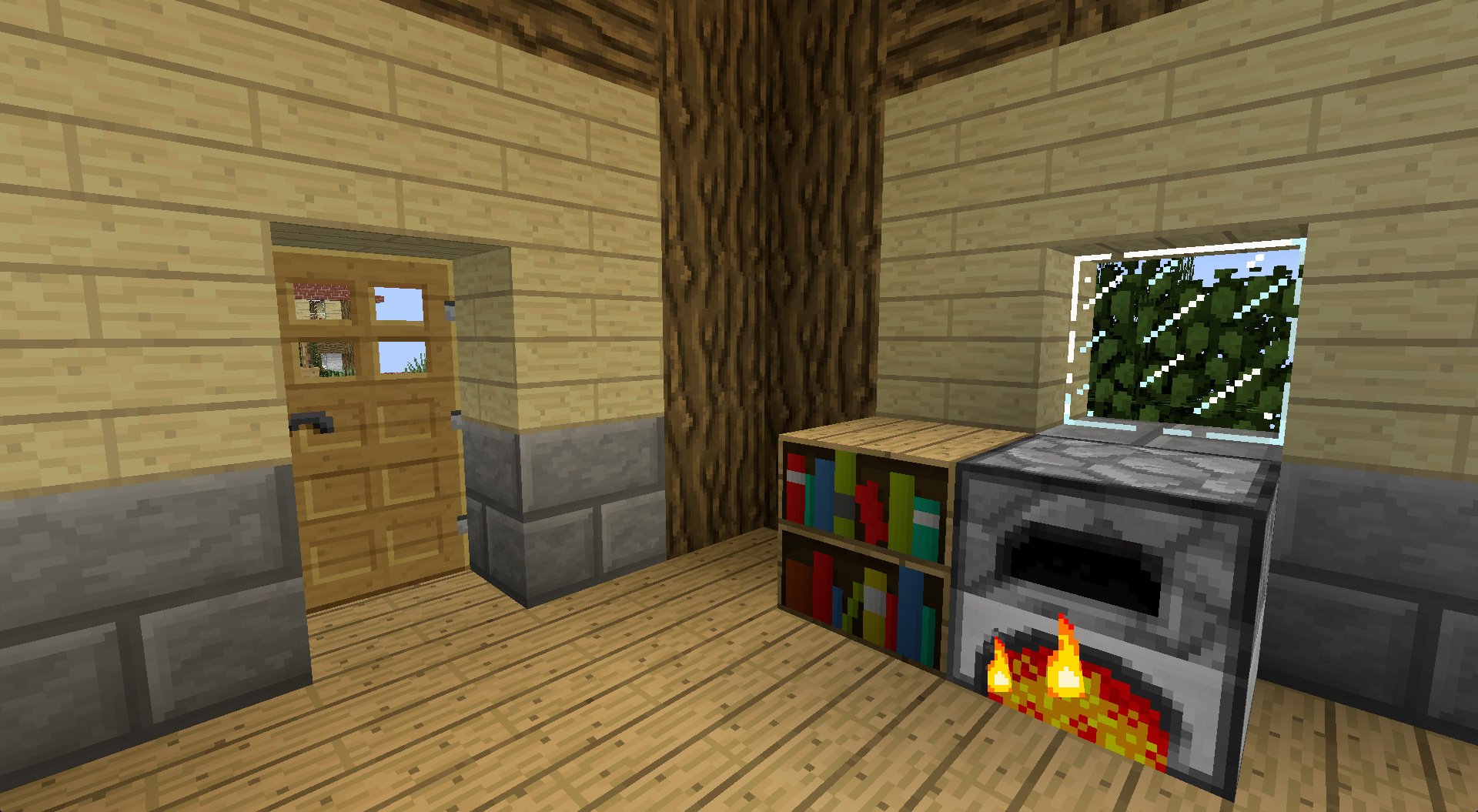
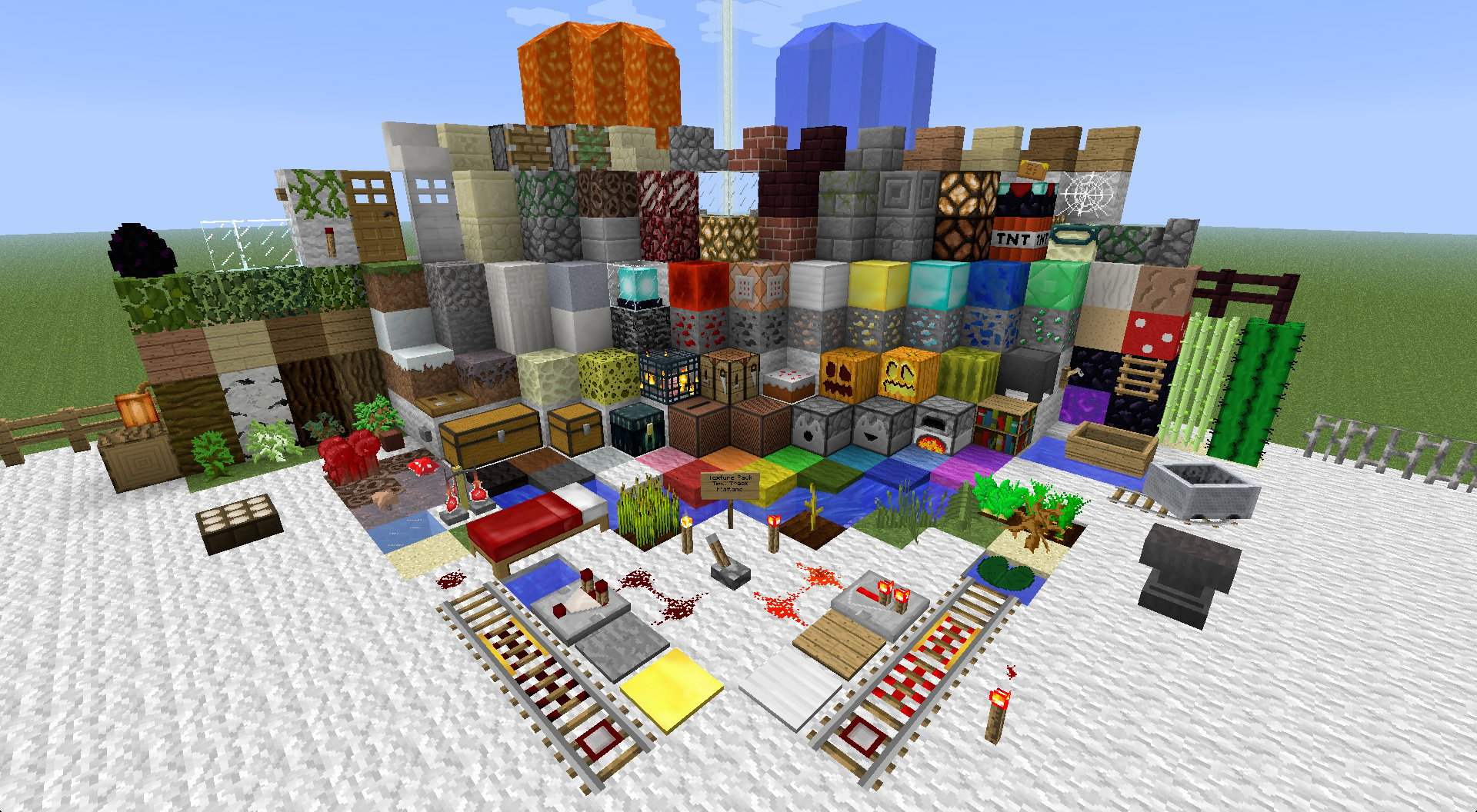
The Faithful resource pack for Minecraft is a high resolution texture pack with a simple goal; have high resolution textures that are different from the default textures in Minecraft while still resembling the vanilla textures. The mod also supports a wide range of mods so this is a good resource pack to use if you use mods and don't want to have odd looking mod textures meant to go with the vanilla resource pack alongside the new textures. Of course, not all mods are supported, but a whole lot are. Check out the screenshots and downloads below.
Downloads
Download Faithful for Minecraft 1.6.x - 1.7.x
Get Mod Support Packs for Faithful here
Get Unofficial Mod Support Packs for Faithful here
Monday, May 12, 2014
Creating a modded Minecraft server with both Bukkit and Forge mods
There are a lot of good Minecraft plugins for Bukkit and a bunch of good Minecraft mods for Forge but most of the time, you don't see Forge mods and Bukkit plugins on the same server. Fortunately, there is MCPC-Plus which is a modified version of the Minecraft server that runs both Bukkit plugins and Forge mods.
Saturday, May 10, 2014
Mr_Crayfish’s Furniture Mod for Minecraft 1.7.2 and 1.6.4
Mr_Crayfish's Furniture Mod for Minecraft adds furniture to Minecraft, something that Mojang left out. The mod adds a bedside cabinet, a wooden table, a wooden chair, a cabinet, a wooden coffee table, a fridge, a freezer, couches (which can be made to be white, green, brown, red, or black), blinds, curtains, lamp, a stone chair, a stone table, stone coffee tables, an oven, an oven range hood, a hedge (which can be oak, pine, birch, or jungle), a bird bath, a stone path, a picket fence, a water tap, a mailbox (including envelopes and packages), a TV, a computer, a printer (including ink cartridges), a fire alarm, a stereo, an electric fence, a ceiling light, a Christmas tree, and presents. Now that you have finished reading that long list, check out the downloads, screenshots, and videos.
Labels:
1.6,
1.6.4,
1.7,
1.7.2,
Minecraft,
mod,
mr_crayfish,
mr_crayfish's
Sunday, May 4, 2014
Bibliocraft for Minecraft 1.7.2, 1.6.4, 1.5.2
BiblioCraft is a mod for Minecraft that was originally created as a way of storing all the new useful books from mods such as Mystcraft, Thaumcraft, MineChem, ComputerCraft, Redpower, etc. The goal of the bookcases were to be aesthetically appealing and functional. Additional storage blocks were later added into the mod. These blocks include a potion shelf for up to twelve potions, a tool rack to hang four
different tools/weapons, a general shelf that can display any four items, a
display case for a single fancy item, and a wooden label that can
display up to three items in small scale for tasks such as indicating what
is in a chest. The newest edition includes the wooden Desk that can hold
up to nine books.
Monday, April 7, 2014
Tropicraft for Minecraft 1.6.4 and 1.5.2
Do you need a vacation from normal Minecraft? Perhaps you should enter the Tropicraft realm by sitting on a beach chair at sunset while drinking a piña colada.
Labels:
1.5.2,
1.6.4,
dl,
forge,
Minecraft,
mod,
modification,
tropicraft
Snows Deeper Mod for Minecraft 1.7.2, 1.6.4, and 1.5.2
In real life there isn't a limit to how deep snow can be but in vanilla Minecraft there is. If you want to make Minecraft more realistic by having it so that it can snow much deeper then you should try the Snows Deeper mod for Minecraft.
Download for 1.7.2
Download for 1.6.x
Download for 1.5.2
If you don't know how to install Minecraft mods read our tutorial.
Screenshots:
Labels:
1.6.4,
1.7.2,
deeper,
dl,
download,
Minecraft,
mod,
modification,
snows,
snows deeper
Sunday, March 30, 2014
Steamcraft mod for Minecraft 1.7.2 and 1.6.4
Steamcraft is a complete revamp of Minecraft. It adds many new blocks and items to the game and gives it a steampunk feel.
Downloads:
Download Steamcraft for Minecraft 1.7.2
Download Steamcraft for Minecraft 1.6.4
Screenshots:
Forum thread
Labels:
1.6.4,
1.7.2,
1.7.5,
1.8,
dl,
download,
forge,
Minecraft,
mod,
modification,
steamcraft,
steampunk
Industrial Craft 2 for Minecraft 1.7.10, 1.7.2, 1.6.4 and 1.5.2
Industrial Craft 2 (or IC2) adds industrial machines to Minecraft to add more functionality and dimension. It also includes many features other than machines, such as plant crossbreeding, new blocks, and new achievements. The machines and generators in Industrial Craft 2 deal with their own form of energy, called Energy Units, or EU.
Downloads:
Download the latest version of Industrial Craft for Minecraft 1.7.10
Download Industrial Craft 2 for Minecraft 1.7.2
Download Industrial Craft 2 for Minecraft 1.6.4
Download Industrial Craft 2 for Minecraft 1.5.2
If you don't know how to install Minecraft mods read our tutorial.
Screenshots:
For more information on Industrial Craft 2, check out the Industrial Craft 2 Wiki, the Industrial Craft 2 blog, and the Industrial Craft 2 fourm.
Tuesday, March 25, 2014
How to install Forge Minecraft mods on Windows - The always up-to-date guide (with screenshots)
This tutorial will help you install most any mod in Minecraft. There are some mods that will require additional steps but this guide should work with pretty much any mod. This guide assumes that you already have Minecraft and Java installed on your computer.
You may want to watch our video tutorial:
1. Download the most appropriate version of Minecraft Forge from here.
Note that Forge takes a while to support new updates to Minecraft sometimes. Forge currently supports Minecraft 1.8. If you are running a newer version than 1.8 or want to run a Forge mod which is not updated for the latest version of Minecraft which is supported by Forge you should read our tutorial on changing your Minecraft version.
2. Open the downloaded file and if you are asked to give it administrative privileges press "Yes". Something that looks like the screenshot below should appear.
3. Make sure that you select "Install client"
4. Press OK and wait for it to install.
5. A new profile called "Forge" will now appear in the launcher. Select that profile and launch it.
6. Minecraft should launch up looking like the screenshot below. Note that yours will look different as you won't have any mods except Forge installed.
2. Once you have navigated to your appdata folder go to the folder named ".minecraft"
3. Now navigate to the folder called "mods"
4. Copy the mod file of your desired mod into the mods folder.
Tips:
5. Launch Minecraft with the Forge profile again.
You may want to watch our video tutorial:
Part 1 - Installing Forge Mod Loader
1. Download the most appropriate version of Minecraft Forge from here.
Note that Forge takes a while to support new updates to Minecraft sometimes. Forge currently supports Minecraft 1.8. If you are running a newer version than 1.8 or want to run a Forge mod which is not updated for the latest version of Minecraft which is supported by Forge you should read our tutorial on changing your Minecraft version.
2. Open the downloaded file and if you are asked to give it administrative privileges press "Yes". Something that looks like the screenshot below should appear.
3. Make sure that you select "Install client"
4. Press OK and wait for it to install.
5. A new profile called "Forge" will now appear in the launcher. Select that profile and launch it.
6. Minecraft should launch up looking like the screenshot below. Note that yours will look different as you won't have any mods except Forge installed.
Part 2 - Installing the Mods
Now that you have Forge installed you can start installing mods in Minecraft.
1. Navigate to the directory where the Minecraft files are stored.
You can do this by going to the start menu and entering %appdata%.
Alternatively, you can get to it by entering %appdata% in the navigation bar in Explorer.
2. Once you have navigated to your appdata folder go to the folder named ".minecraft"
3. Now navigate to the folder called "mods"
4. Copy the mod file of your desired mod into the mods folder.
Tips:
- Some older mods are coremods and should go in the "coremods" folder rather than the "mods" folder. If a mod is a coremod, it will be specified on our site. You will only need to do this with old mods and old versions of Forge.
- Mods are typically either a .jar file or a .zip file. These mods can be copied into the "mods" folder unless they are a coremod (in which case, you follow the previous tip). Sometime a mod file is stored within a .zip file. In this case, you will have to extract the mod file from the .zip. We will specify when a mod file is stored in a .zip file. If you are not certain, you can always open up the .zip in your favorite archive manager and check.
5. Launch Minecraft with the Forge profile again.
6. When it launches o the menu, click on the mods button.
Tuesday, March 18, 2014
Download Forge Mod Loader
Forge Mod Loader is a mod for Minecraft that allows you to load other mods on top of it. Most mods require Forge.
Download Forge here
Monday, March 17, 2014
How to change your version of Minecraft
This tutorial will show you how to change your Minecraft version. There are multiple reasons why someone would want to change their version of Minecraft. These reasons include needing compatibility with a mod that hasn't yet been updated for the latest version of Minecraft, wanting to feel nostalgia for an older version of the game or simply wanting to try out one of the pre-releases to see what new and cool features are in it.
(Note: Although Microsoft Windows is used in this tutorial, the process of changing the Minecraft version is the same throughout every operating system that supports Minecraft.)
1. Launch Minecraft.
2. Go to the "New Profile" button on the bottom left of the launcher.
3. Select your desired version. If you want access to snapshots select the snapshots check-box. If you want access to really, really old versions of Minecraft (alpha and beta) select the appropriate check-box.
4. Give the profile a name and press the "Save Profile" button at the bottom right of the profile editor.
5. Press play. The launcher will now download all the required files for that version and you will be able to play it separately from your other versions of Minecraft.
(Note: Although Microsoft Windows is used in this tutorial, the process of changing the Minecraft version is the same throughout every operating system that supports Minecraft.)
1. Launch Minecraft.
2. Go to the "New Profile" button on the bottom left of the launcher.
3. Select your desired version. If you want access to snapshots select the snapshots check-box. If you want access to really, really old versions of Minecraft (alpha and beta) select the appropriate check-box.
4. Give the profile a name and press the "Save Profile" button at the bottom right of the profile editor.
5. Press play. The launcher will now download all the required files for that version and you will be able to play it separately from your other versions of Minecraft.
Subscribe to:
Posts (Atom)